
I have quite a few Raspberry Pis – namely my Hadoop cluster and my home automation server. But as investigate new software and setup I tend to use my Pi’s a little bit like virtual servers by swapping in and our various SD cards. I use the procedure below as the basic provisioning of a new machine.
- Format the SD card
- Copy NOOBS Lite
- Plug everything in
- Install the OS
- CHANGE THE PASSWORD
- Configure local settings
- Enable SSH
- Find IP Address
- Unplug keyboard and monitor
1. Format the SD card
Note if you are using a 64gb SD card or greater it needs to be formatted as FAT32 not FATex. This requires a special tool if formatting from windows. I use
http://www.ridgecrop.demon.co.uk/index.htm?fat32format.htm
2. Copy NOOBS Lite
As I’m going to be using this as server I want only the very bare basics to be installed so I use NOOBS Lite.
https://www.raspberrypi.org/downloads/noobs/
Download NOOBS LITE and extract the files to the SD card.
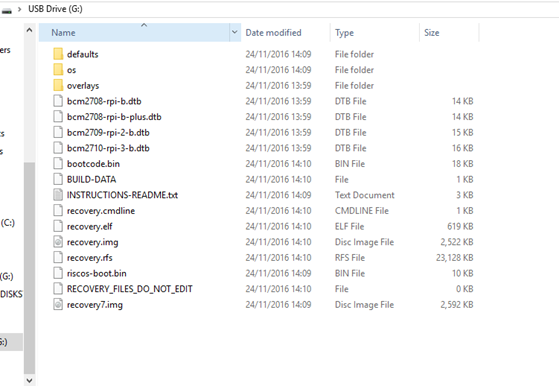
3. Plug everything in
Plug in the SD card, monitor, keyboard and ethernet cable (not required if using wireless) and power up the pi
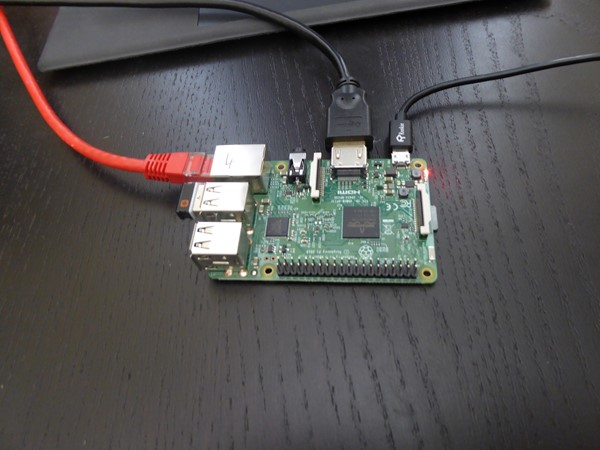
4. Install the OS
During the first boot up the pi will automatically expand the filesystem to use all the space on the SD card and then load the installer.
For our purposes we want to use Raspian Lite
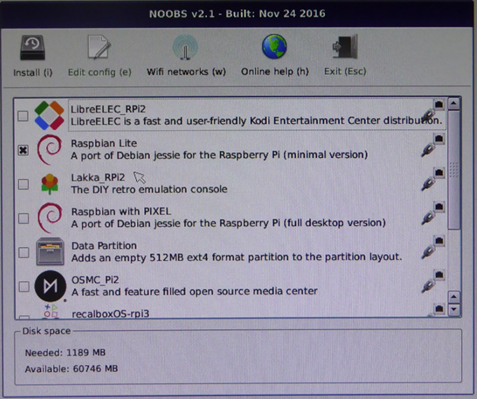
Depending on your internet connection this should take a couple of minutes
Once this is finished you will be presented with the login screen
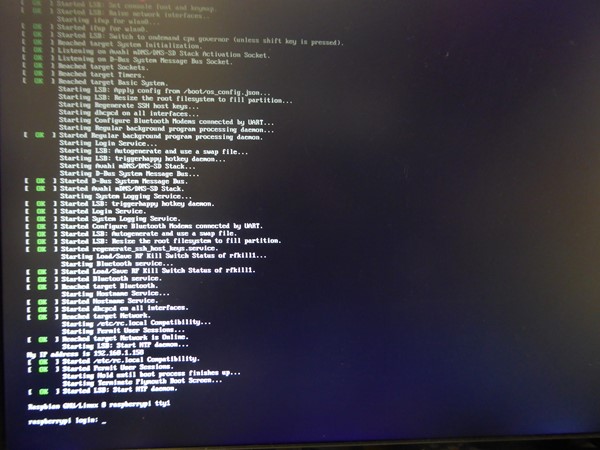
On initial install a default username and password is used
Username: pi
Password: raspberry
5. CHANGE THE PASSWORD
I bet it will be amazing to find the number of Pi’s out there with the default password still set. First thing we will do is to change the password. Ideally create a new admin account and disable the pi username altogether but I will cover that at a later date.
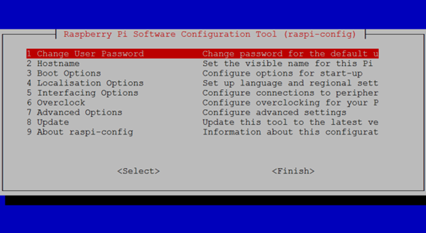
Most of the initial setup can be done with the standard configure tool that can be run using
sudo raspi-config
Changing the password is the first item on the menu.
6. Configure local settings
The number of times I’ve got confused because I never set the timezone properly causing mismatches between my different pi’s means I’ve added this into one of the very first steps when setting up a new pi server.
Go to
-> 4 Localisation Options
-> I2 Change Timezone
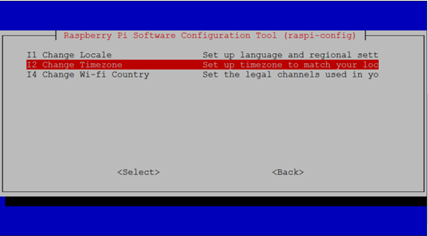
Go through the screens to select your timezone – here I’m in London
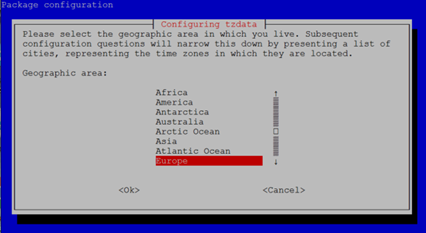
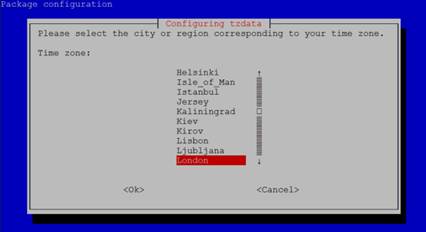
And select OK
7. Enable SSH
As we will be using this as a server (one of potentially many) it will very rarely have a monitor and keyboard plugged in swapping then around when working on different servers would be, well, annoying. SSH provides an easy way mange this server remotely via a tool like putty but isnt enabled by default.
To enable go to
-> 5 Interfacing Options
-> P2 SSH
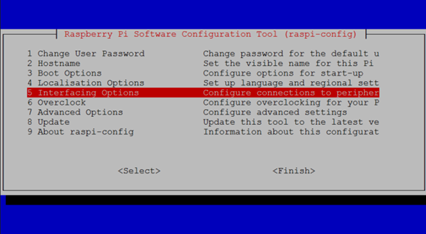
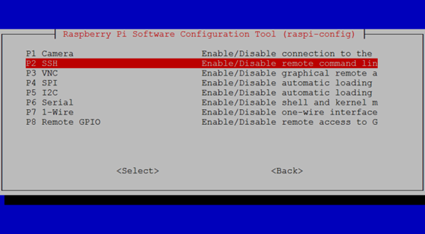
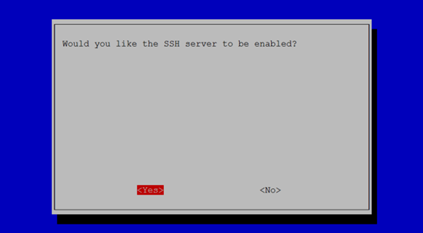
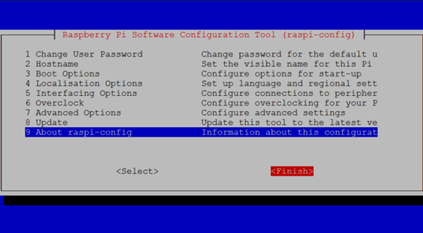
That’s everything for the config program so now just select finish.
8. Find IP Address
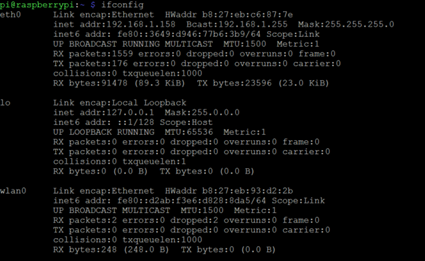
When we do the initial server set up we will most likely be setting a static IP address however to remotely login initially we need to find the initial IP address assigned. We can then ssh in and continue the sever specific setup. This can be done via
$ ifconfig
9. Unplug keyboard and monitor
That’s it the pi is now a blank mini server ready for use – unplug the monitor and keyboard as it will be much easier to do everything else via ssh from here onwards.